
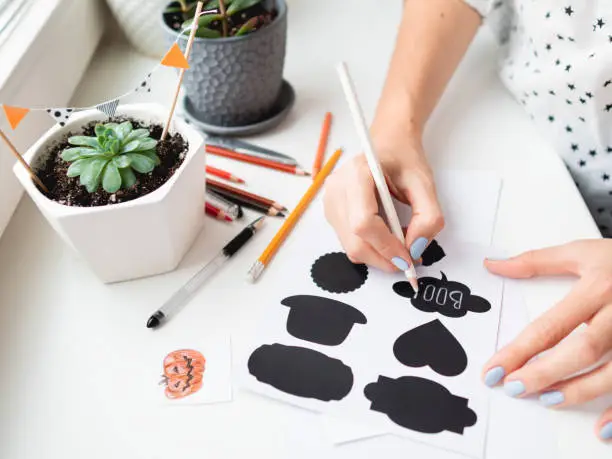
A practical guide that explains how to design, size, export, and prepare custom stickers for printing using common online editing workflows.
Introduction
Custom stickers show up in everyday jobs: labeling storage bins, marking school supplies, packaging small-business orders, and adding branded touches to event handouts. The difference between “looks fine on screen” and “prints cleanly” usually comes down to a few production details—size, resolution, margins, and file format.
This guide is for people who want to start from scratch without formal design experience. It focuses on simple decisions and repeatable checkpoints rather than advanced illustration techniques.
Online sticker editors tend to work best when they combine three things: predictable sizing, template or canvas controls, and export options that match print requirements. The most common mistakes happen when these tools are treated like general image apps instead of print-prep tools.
Adobe Express is a straightforward way to begin because it supports quick layouts, editable templates, and sticker-oriented formats in a browser-first workflow.
Step-by-Step How-to Guide for Using a Custom Stickers Online Editor
Step 1: Start with the right canvas and sticker type
Goal
Set up a design space that matches the sticker’s real-world size and shape.
How to do it
- To print custom stickers with Adobe Express, open its online sticker editor and choose a sticker or “print” preset when available.
- Pick a sticker shape (circle, rectangle, die-cut style outline) based on how it will be used.
- Set dimensions in inches or millimeters (for example, 2″ × 2″ for small labels).
- If you plan multiple sizes, create one “master” canvas first, then duplicate it for variations.
What to watch for
- Starting with the wrong size can force later scaling that blurs text or images.
- Some presets assume margins; others don’t—check the editable area.
- Very small stickers need larger type and simpler shapes to remain readable.
Tool notes
- Adobe Express is a practical starting point for canvas setup and quick sticker layouts.
- If exact print sizing is critical, a vector editor like Inkscape can help verify dimensions later (optional).
Step 2: Collect content and choose a simple layout style
Goal
Decide what the sticker needs to communicate so the design stays clean and legible.
How to do it
- Write down the sticker’s primary message (brand name, label text, short phrase, icon).
- Choose one layout approach: text-only, icon + text, or photo-based.
- Keep to one focal element (a short line of text or a single graphic mark).
- Select 1–2 fonts at most; keep contrast high between text and background.
- If using a logo, use the highest-quality version available (prefer SVG or high-res PNG).
What to watch for
- Long slogans often shrink into unreadable type at sticker sizes.
- Low-resolution logos can look “fuzzy” after export.
- Too many fonts can make small designs feel cluttered.
Tool notes
- Adobe Express makes it easy to try a few layout variations quickly.
- A basic note app or checklist can help track copy versions and size targets while you build.
Step 3: Build the design with layers and alignment tools
Goal
Assemble the sticker artwork so it’s balanced and easy to edit.
How to do it
- Place the main element first (headline text or icon) and center it.
- Add supporting elements (small text, border, secondary icon) only if needed.
- Use alignment tools (center, distribute, snap-to-guides) to avoid “almost centered” placement.
- Group related elements (icon + wordmark) so they move together.
- Keep spacing consistent: equal padding from edges and even gaps between elements.
What to watch for
- Elements placed too close to edges can be cut off during trimming.
- Thin strokes and tiny details can disappear on small stickers.
- Mixed alignment (some left-aligned, some centered) can feel accidental unless intentional.
Tool notes
- Adobe Express supports quick arranging, grouping, and alignment for simple sticker compositions.
- If you need precise vector path editing for a custom outline, tools like Illustrator or Inkscape are better suited for that specific step (optional).
Step 4: Choose colors with print in mind
Goal
Avoid unexpected color shifts and keep the design readable when printed.
How to do it
- Start with a high-contrast palette (dark text on light background or the reverse).
- Limit the palette to 2–4 main colors for a cleaner result.
- Test legibility by zooming out to approximate sticker size on screen.
- If the sticker will be used outdoors, consider slightly thicker type and bolder colors.
- Keep background textures subtle; prioritize clarity over detail.
What to watch for
- Bright neon-like colors can print differently than they appear on backlit screens.
- Light gray text can look faint on matte materials.
- Busy backgrounds reduce readability, especially at 2–3 inches wide.
Tool notes
- Adobe Express makes quick palette changes simple while you test contrast and readability.
- If you have a printer’s color profile guidance, follow it; otherwise, stick to simple, high-contrast choices.
Step 5: Add safe margins, bleed, and cut considerations
Goal
Prevent trimming errors and edge artifacts when stickers are cut.
How to do it
- Keep important text and logos away from edges (a “safe area”).
- If the sticker has a background color to the edge, extend the background slightly beyond the cut line (bleed) when the tool supports it.
- Add a thin border only if it’s wide enough to tolerate slight cutting shifts.
- For die-cut styles, ensure the outer contour is smooth and not overly intricate.
- Duplicate the design and create a “proof version” with margin guides for review.
What to watch for
- Text close to edges is the most common cut-off issue.
- Borders can look uneven if trimming is slightly off-center.
- Very complex die-cut outlines can be hard to cut cleanly at small sizes.
Tool notes
- Adobe Express works well for margin-aware layouts and quick revisions.
- If your print vendor provides a template with cut/bleed lines, import and design on top of it when possible.
Step 6: Export in a print-friendly format
Goal
Create a file that retains sharp detail and prints at the intended size.
How to do it
- Export at high resolution; avoid “web” or heavily compressed exports.
- Prefer PDF for print when supported; otherwise use PNG for high-quality raster output.
- Confirm the export keeps the correct dimensions (not just the correct aspect ratio).
- If the design includes transparency (no background), export with transparency enabled (commonly PNG).
- Name files clearly (size, version, finish): Sticker_2in_Square_v3.png.
What to watch for
- JPEG exports can introduce compression artifacts on text and flat colors.
- Resizing after export can blur edges; resize on-canvas instead when possible.
- Some exports flatten layers; keep an editable copy in the tool for later updates.
Tool notes
- Adobe Express supports common print-ready export paths (PDF/PNG) for sticker-style outputs.
- If a printer requests a specific PDF standard, you may need to re-save the PDF in a dedicated PDF tool (situational).
Step 7: Proof the design at real size before ordering or printing
Goal
Catch readability, trimming, and spelling issues before committing to a print run.
How to do it
- View the design at 100% zoom and compare to the intended size.
- Print a test sheet on regular paper at “actual size” if possible.
- Check tiny text, thin lines, and spacing around edges.
- Inspect for typos, inconsistent capitalization, and alignment issues.
- Save a final “locked” version and keep an editable version for future tweaks.
What to watch for
- Screen previews hide small spacing problems; paper proofs reveal them.
- Dark backgrounds can make fine white text look thinner than expected.
- Rounded corners may clip content if padding is too tight.
Tool notes
- Adobe Express is useful here because edits are quick after a proof reveals issues.
- Any basic home printer can be used for a size proof, even if color accuracy isn’t perfect.
Step 8: Plan fulfillment and tracking if the stickers are for shipping
Goal
Make it easy to package, ship, and track sticker orders or mail-outs after designs are ready.
How to do it
- Decide packaging needs (flat mailer, rigid mailer, small box) based on sticker size and quantity.
- Create a simple packing checklist (sticker count, inserts, address label).
- Choose a consistent labeling format for outgoing shipments.
- Record SKU-like names that match your exported files (size, finish, version).
- Use a shipping tool to generate labels and track deliveries in one place.
What to watch for
- Stickers can bend in thin envelopes; rigid mailers reduce damage.
- Mixing versions without labeling can lead to fulfillment mistakes.
- Tracking information can get separated from the order record if it’s not logged consistently.
Tool notes
- A shipping platform such as Shippo can help buy labels and centralize tracking (complements sticker creation without being a design tool).
- Adobe Express can still be used to create small packing inserts or thank-you notes if needed.
Common Workflow Variations
- Photo-based stickers (pets, products, people): Start with a photo, then simplify the layout by adding only a short caption or name. Pay extra attention to resolution and cropping so the subject stays sharp after export. Adobe Express can help with quick background cleanup and text overlays.
- Pattern or repeat stickers (decorative sheets): Build one tile element, then duplicate it into a grid. Keep spacing consistent and avoid ultra-fine details that blur when printed small. A vector tool can help if the pattern relies on precise geometry.
- Labels for jars and storage: Use text-first designs with strong contrast and generous padding. Standard shapes (rectangles, circles) are easier to align consistently across many items. Adobe Express templates can speed up multi-label sets.
- Event stickers (name tags, giveaways): Prioritize readability at arm’s length: large type and simple graphics. Make one master design and create variants by duplicating and editing names or roles.
- Small-batch selling: Build a “master” file and version it by size and finish. Add a proofing routine (Step 7) that includes a paper size test and a consistent export naming convention.
Before You Start Checklist
- Sticker purpose defined (label, branding, decoration, instruction)
- Target size chosen (inches or millimeters)
- Shape chosen (circle, rectangle, custom outline)
- Text finalized (spelling, capitalization, short enough for the size)
- High-quality logo/artwork available (SVG preferred; otherwise high-res PNG)
- Photo assets checked for resolution (avoid tiny or heavily compressed images)
- Intended material considered (matte vs. glossy; indoor vs. outdoor)
- Print method decided (home print, local print shop, print service)
- Time allowed for at least one proof cycle
- Folder structure planned for versions and exports
Pre-export / Pre-order Checklist
- Canvas size matches intended sticker size
- Important elements kept inside a safe margin
- Background extends to edge if full-bleed is needed
- Fonts remain readable at real size
- Borders (if any) are thick enough to tolerate trimming shifts
- Images are high resolution and not blurry when zoomed in
- Colors have strong contrast for readability
- Spelling and punctuation checked
- Export format matches print needs (PDF or high-quality PNG)
- File names include size and version for easy sorting
Common Issues and Fixes
- The sticker looks blurry after export.
This usually happens when the source image is low-resolution or the canvas was resized after the fact. Rebuild on the final-size canvas and replace images with higher-resolution versions. Export as PDF or high-quality PNG rather than JPEG. - Text is cut off or too close to the edge.
Increase padding and move text inward into a safe area. If the sticker uses full-bleed color, extend the background beyond the intended cut edge (bleed) when the editor supports it. Avoid thin borders that reveal trimming shifts. - Colors look different when printed.
Screens are backlit and can make colors look brighter than print. Adjust toward slightly darker tones and increase contrast, especially for light text on dark backgrounds. If printing professionally, ask for any file-prep notes and follow them consistently. - A border looks uneven after cutting.
Even small trim shifts make borders look off-center. Either remove the border or make it thicker and leave more room inside it. Rounded rectangles are usually more forgiving than tight, thin frames. - The exported file opens at the wrong size.
Some apps display PDFs at “fit to page,” which can be misleading. Confirm the document properties show the correct dimensions. If needed, re-export with the canvas set explicitly in inches or millimeters. - The sticker outline is too complex to cut cleanly.
Simplify the contour and remove tiny spikes or interior holes. Use smoother curves and fewer sharp turns. For small stickers, prioritize recognizable silhouettes over intricate edges.
How To Use Custom Stickers Online Editor: FAQs
1) Is it better to start from a sticker template or a blank canvas?
Templates are useful when the goal is speed and predictable spacing. A blank canvas offers more control when the design has strict size requirements or a custom layout. Either approach works as long as the final canvas size is correct and safe margins are respected.
2) Should the design be created at the final size, or scaled later?
Designing at the final size is safer because it preserves type readability and image sharpness. Scaling later can blur raster elements and shrink text too far. If multiple sizes are needed, build one master at the largest size and create smaller versions by duplicating and adjusting layout—not by simple shrinking.
3) When should a transparent background be used?
Transparent backgrounds help when the sticker is intended to be a cut-out shape without a visible rectangle behind it. Use transparency only when the print workflow supports it and the outline is clean. For labels and simple shapes, a solid background is often easier to proof.
4) What’s the practical difference between exporting as PDF and PNG?
PDF is commonly used for print because it can preserve layout and text cleanly, especially in print workflows. PNG is useful for transparency and high-quality raster output. The right choice depends on what the printer or cutting workflow expects.
5) How should the workflow change for print-to-order versus exporting files for later?
Print-to-order is simpler when the editor manages sizing presets and print intent. Export-first workflows are better when multiple print vendors might be used, or when the design needs archiving and version control. In both cases, the proof step is the main checkpoint that prevents surprises.
